Preferences Window
Every configurable preference in Metadatics, tab by tab.
Metadatics includes a number of configurable preferences, described below.
General
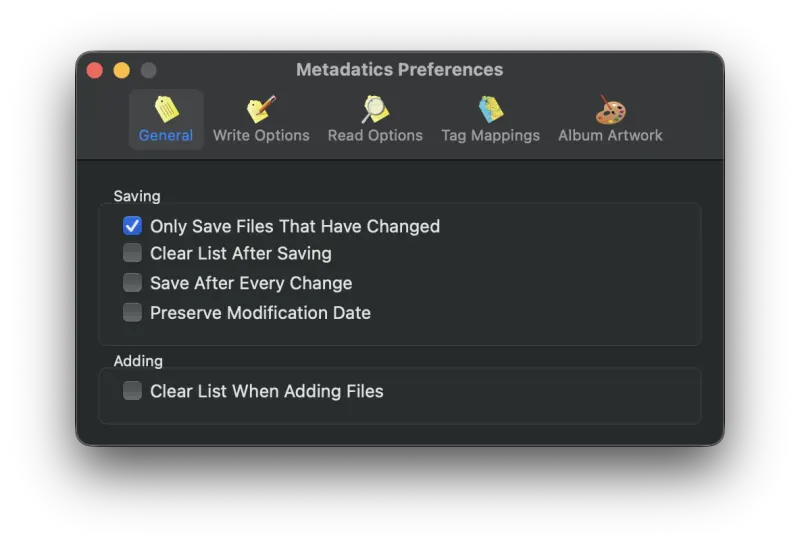
- Only Save Files That Have Changed
- When enabled, only files whose save indicator is red are saved. Files with a green indicator are skipped. Disabling this option causes even unchanged files to be re-saved.
- Clear List After Saving
- When enabled, all files are removed from the list after a save completes.
- Save After Every Change
- When enabled, files are saved automatically after every change.
- Clear List When Adding Files
- When enabled, adding new files to Metadatics clears the current list first.
Write Options
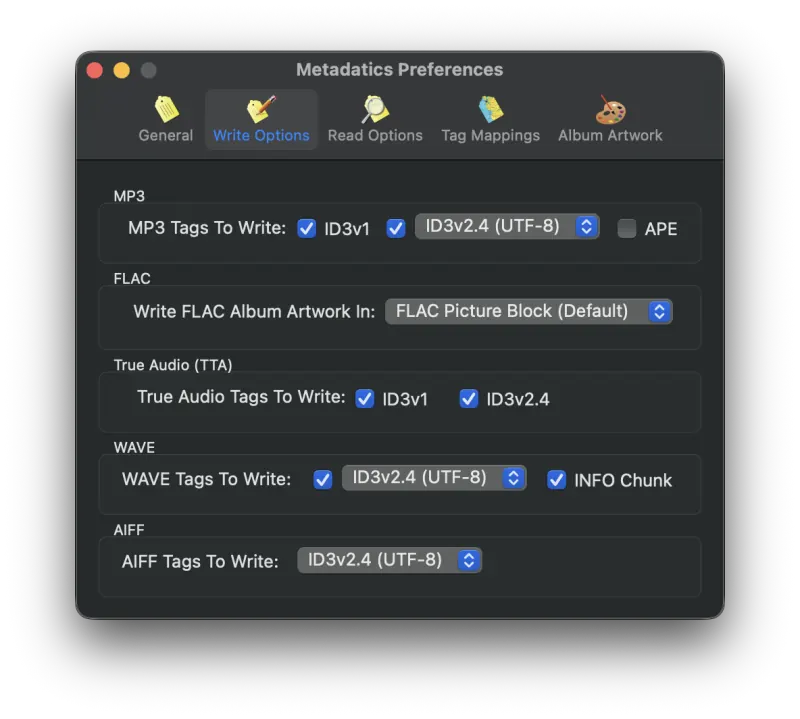
- MP3 Tag Types To Write
- Which tag types to write when saving MP3 files. Choose between ID3v2.3 or ID3v2.4 with various text encodings. ID3v2.4 UTF8 is the most current standard; some older devices only support ID3v2.3 Latin 1.
- Write FLAC Album Artwork In
- FLAC has a dedicated metadata block for images. It is recommended to write images to the FLAC Picture Block. You can also save images in a FLAC file's Vorbis Comments. Writing to both is generally not recommended because the images become redundant.
- True Audio Tags To Write
- Which tag types to write when saving True Audio files. Choose between ID3v2.1 or ID3v2.4.
- WAVE Tags To Write
- Which tag types to write when saving WAV files. You can write INFO Chunk tags and/or ID3v2.4 with various text encodings. ID3v2.4 UTF8 is the most current standard; some older devices only support ID3v2.3 Latin 1.
- AIFF Tags To Write
- Which tag types to write when saving AIFF files. ID3v2.4 UTF8 is the most current standard; some older devices only support ID3v2.3 Latin 1.
Read Options
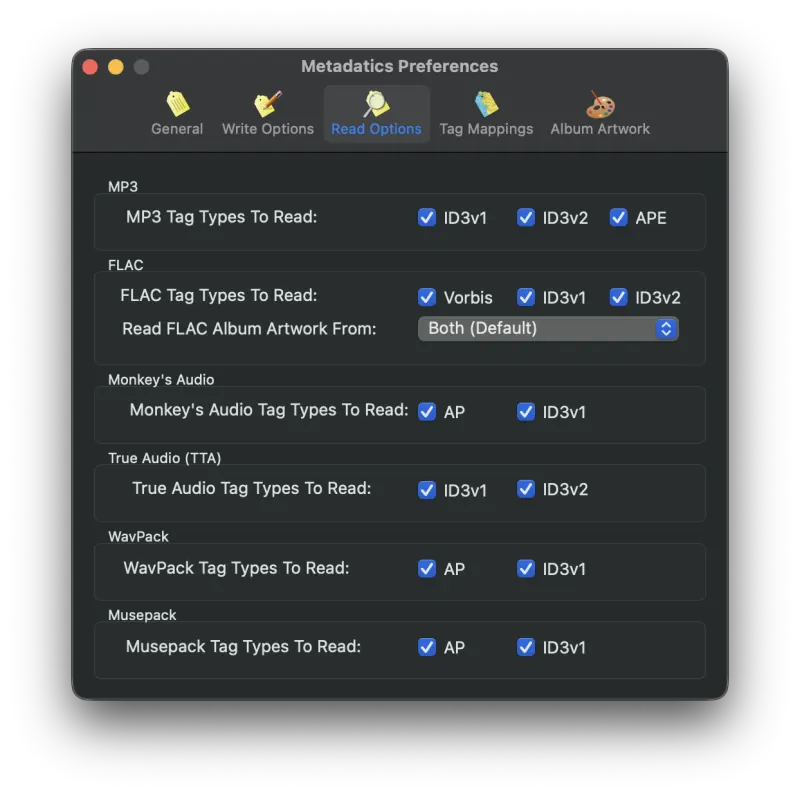
Many audio file types support multiple metadata formats. The Read Options tab lets you select which metadata formats to read. Metadatics reads from all tag types and discards duplicates, but you may have a special case where you need to read only from certain tag types.
Tag Mappings
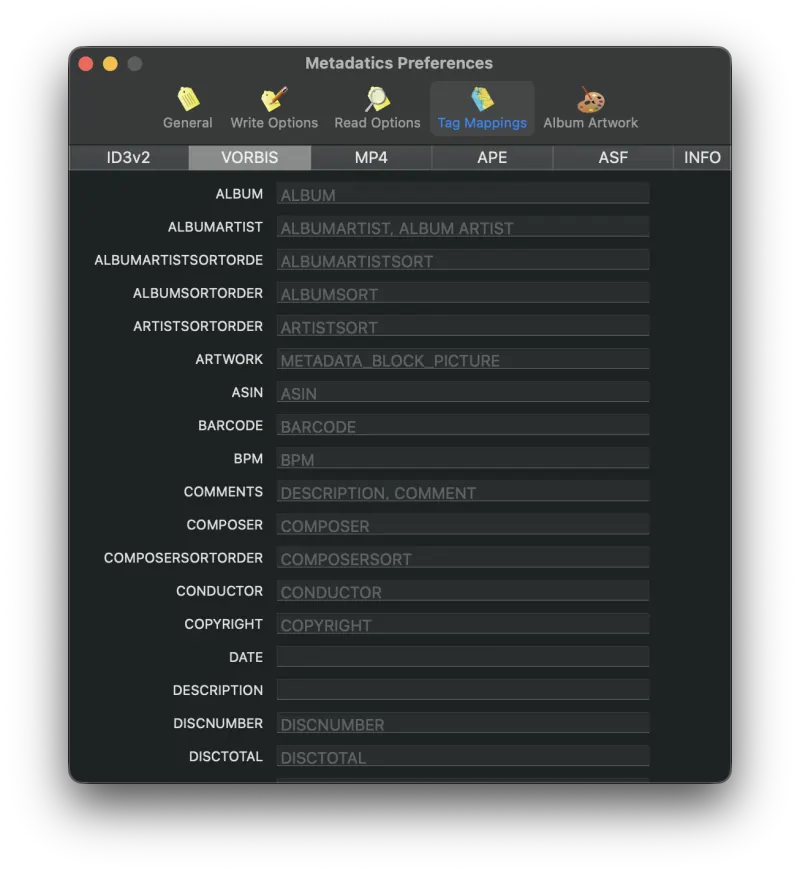
Most tag types, like ID3v2 or M4A, are standardized. Others (Vorbis, APE, and ASF) are not. For these tag types, Metadatics lets you map their tag names to the corresponding name in Metadatics. It is generally recommended to leave these at their defaults unless you have a specific reason to change them.
Album Artwork
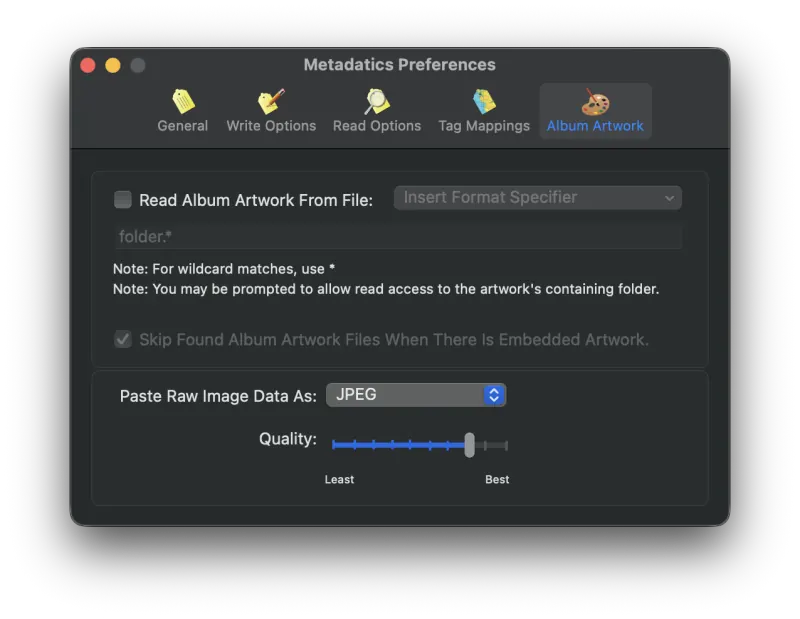
- Read Album Artwork From File
- When enabled, Metadatics searches for an image file matching the given format string for every file you add. If it finds one, Metadatics uses that image as the album artwork. Use
*for wildcard matches, or construct format strings based on the file's metadata. - Skip Found Album Artwork When There Is Embedded Artwork
- When enabled, and the files being added already have embedded artwork, Metadatics skips over any matching album artwork image files that it finds.
- Pasting Album Artwork
- When image data is copied to the clipboard, macOS stores it in TIFF format. When pasting into Metadatics, it must be converted to either JPEG or PNG. This preference pane lets you choose which format to paste, and a JPEG compression quality level.
Still need help? Email [email protected] or send a message.