
Batch Extract Artworks
Save embedded album artwork from many audio files to separate image files in a single pass.
The Batch Extract Artworks function saves the embedded artwork from each audio file to a separate image file.
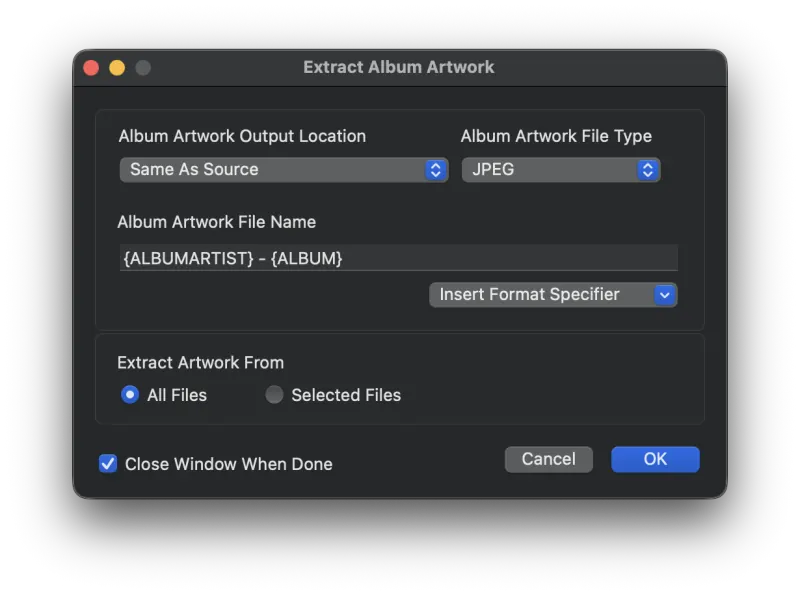
Options Explained
- Album Artwork Output Location
- Choose whether to extract album artwork in the same directory as the source file, or to a folder of your choice.
- Album Artwork File Type
- The image file type to save. Selecting Original saves the image in the exact data format that is embedded in the audio file, without any conversion. You can also convert the file to another image type.
- Album Artwork File Name
- The format string for the output file name. Use tag names enclosed in brackets, along with any literal text outside the brackets. In the screenshot above, the output file name is "Track Artist - Album Title". Metadatics automatically appends the appropriate file extension (.jpg, .png, .tiff, etc.).
- Extract Artwork From
- Extract the artwork from all files, or only from the selected files.
Still need help? Email [email protected] or send a message.