Main Window
A tour of the five main sections of the Metadatics main window.
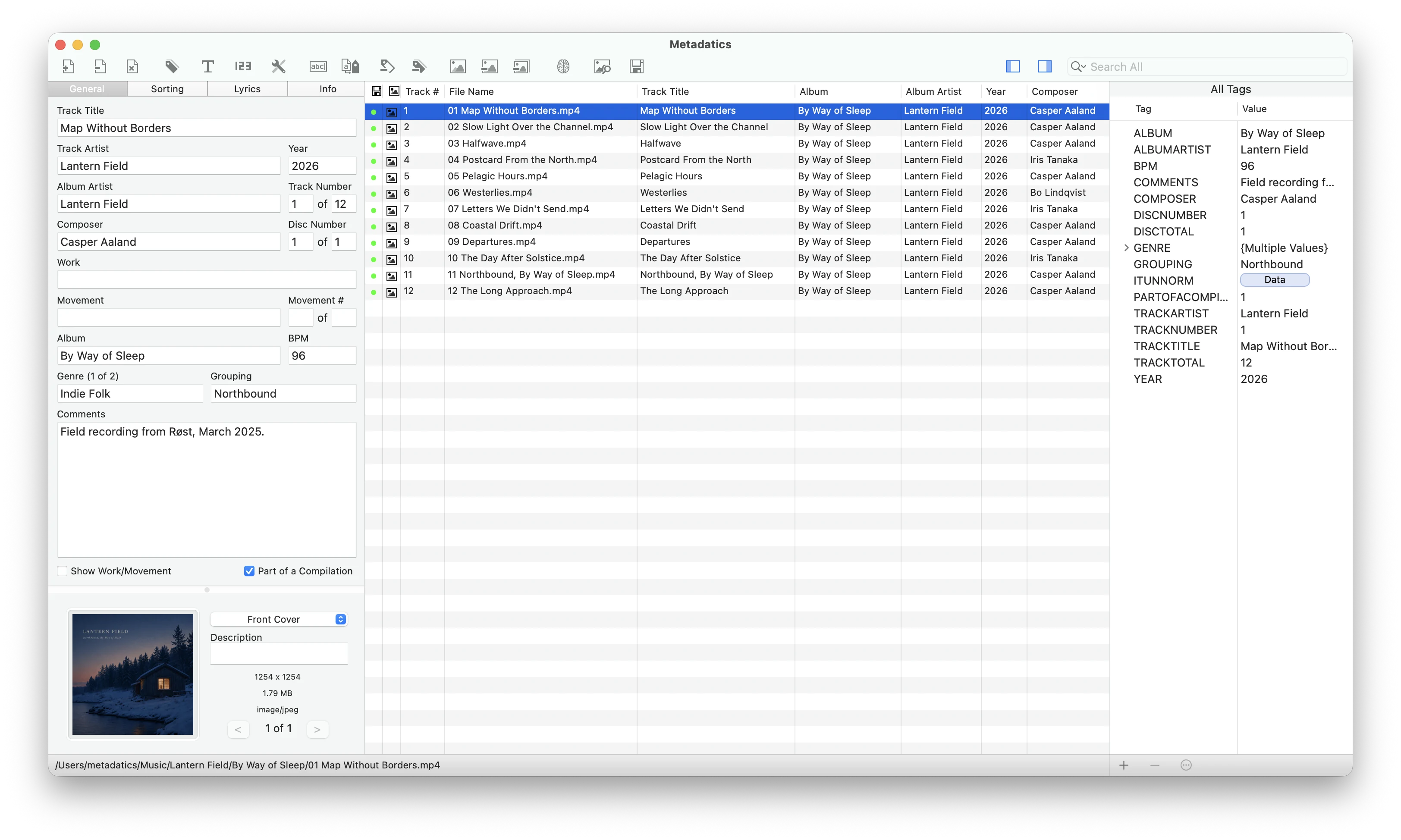
The main window is divided into five distinct sections: the toolbar at the top, the Field Editor on the left, the Album Artwork Editor on the bottom left, the File List in the center, and the All Tags panel on the right. Each section is described below.
Toolbar
The toolbar along the top contains icons for all of the functions available in Metadatics. You can edit which icons are shown and their placement by control-clicking on the toolbar and choosing Customize Toolbar… There are also icons to show and hide the panels on the left and right, as well as a search bar that filters the File List.
Field Editor
This is where you edit some of the most common tags found in audio files. The files being edited are the ones selected in the File List. If multiple files are selected, Metadatics changes the information for every selected file.
Some fields support multiple values. When a field has more than one, a counter such as “1 of 2” appears next to its name; press the + button to add another value, and use the up and down arrows to scroll through them.
Album Artwork Editor
The Album Artwork Editor is on the bottom of the left pane. The box displays the artwork for the selected files. Drag image files from the Finder onto this box to set the artwork on the selected files. A drop-down menu lets you choose the image type, and there is a text box for a description.
Metadatics supports embedding multiple image files in a single audio file. If a file has multiple images, scroll through them using the selector at the bottom right of the Album Artwork Editor. If you try to add an image to a file that already has artwork, Metadatics asks whether you want to add the new image alongside the existing one or replace it.
File List
The File List is the main table of files in the center of Metadatics, containing every file you are currently working on. You can edit information directly in this table by double-clicking the field you want to change.
The first column is the save indicator column, which is either green or red. Red indicates that a file has unsaved changes.
Drag column headers around to re-arrange them. Control-click on the column headers to show or hide any of the available columns.
All Tags Panel
The far right panel contains the list of all tags present in the selected files, a comprehensive list that goes beyond what is shown in the Field Editor. From here, tags can be added, edited, or deleted.
Still need help? Email [email protected] or send a message.