
Batch Resize Artworks
Resize the embedded album artwork across many audio files in a single pass.
If you want to resize several album artworks at once, use the Batch Resize Artworks function.
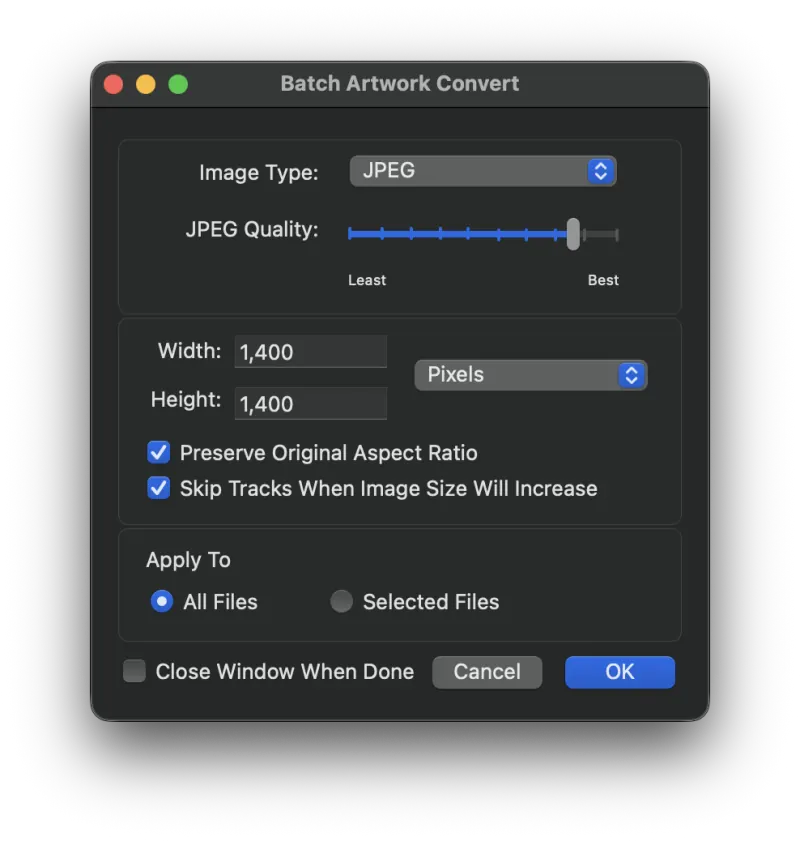
Options Explained
- Image Type
- The image type that the new resized image should be saved as.
- JPEG Quality
- Used when the image type is Original and the original image is JPEG, or when the image type is JPEG. Higher quality produces better-looking images but larger file sizes.
- Image Dimensions
- Enter new values for the width and height of the image. To resize by a percentage, choose percent from the pop-up menu.
- Preserve Original Aspect Ratio
- When enabled, and the aspect ratio set in the width and height fields does not match the original image, Metadatics alters the width or height to preserve the original aspect ratio. If disabled, the artwork is resized to exactly the entered width and height.
- Skip Tracks When Image Size Will Increase
- When an artwork is smaller than the entered width and height, that artwork is not resized.
Still need help? Email [email protected] or send a message.