Getting Started
Convert a batch of audio files with Pro Audio Converter in four simple steps.
Pro Audio Converter is a batch audio conversion tool for macOS. You can drop in files, choose one or more output formats, and encode everything in a single pass. Here is the fastest path from launch to finished output.
The Four-Step Workflow
- Add files to the queue. Drag audio files or folders from Finder (or from the Music app) onto the main window or the Dock icon. Pro Audio Converter recurses into folders and adds every supported file it finds.
- Edit metadata (optional). Click the Metadata toolbar button to open the Metadata Editor and adjust tags for any selected file. You can edit multiple files at once by selecting them first.
- Choose your output formats. Use the Add Format button to stack one or more output formats. Each format has its own encoder settings you can configure in the Output Format Editor at the bottom of the window.
- Press Encode. Click Encode in the toolbar. By default, output files go to your Music folder. You can change the output location and build a custom naming scheme in Settings.
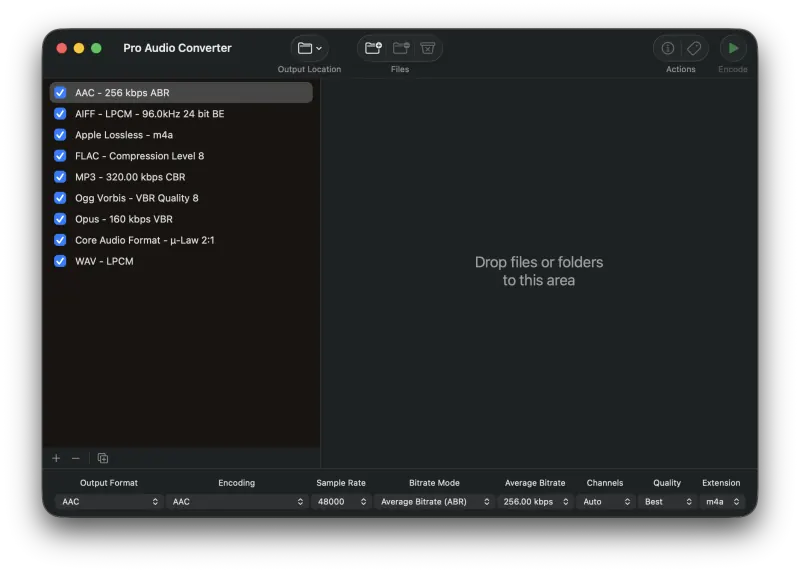
Tip: Pro Audio Converter can encode to several formats at once. Add multiple entries in the Output Formats list and every input file will be encoded to each of them in a single batch.
What's Next?
From here, learn more about adding and removing files, the full conversion workflow, or how to build a custom output directory and file-naming scheme. If you only want to update tags on existing files, see using Pro Audio Converter as a tag editor.
Still need help? Email [email protected] or send a message.