
Metadata Editor Window
Edit tags on one file or thousands, drag in artwork, and copy metadata between files.
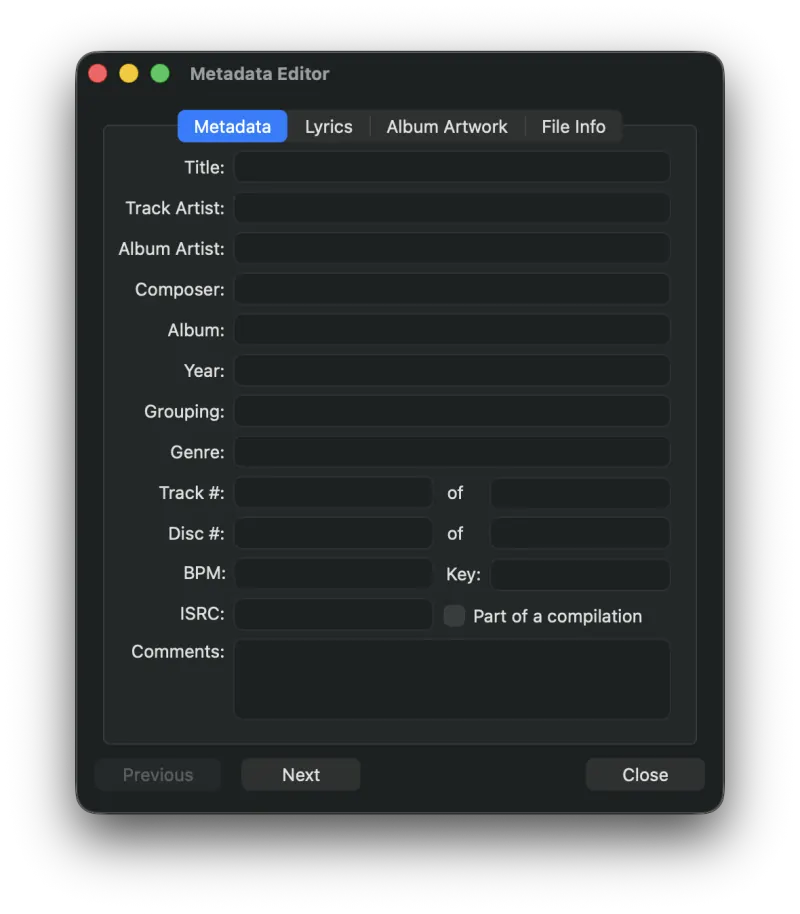
Pro Audio Converter automatically attempts to read any metadata present in the source file. You can view and edit that metadata via the Metadata Editor window. Edit the info for multiple files at once by selecting the files you want to edit.
Keyboard Shortcuts
Use ⌘P and ⌘N to jump to the previous or next file.
Artwork
Album artwork can be dragged directly onto the Album Artwork pane of the Metadata Editor.
Copying Metadata Between Files
You can copy all of the metadata at once from one file and paste it into others. Select the file whose metadata you want to copy and choose Copy All Metadata (⇧⌘C) from the Metadata menu. Then select the file(s) you want to paste into and choose Paste All Metadata (⇧⌘V).
Clearing Metadata
All of the metadata for the selected files can be cleared by selecting Clear Metadata from the Metadata menu.
When Is Metadata Applied?
Metadata is applied to the output files only after pressing Encode. To write metadata to the input files instead, hold down the Encode button to reveal the popup menu, then choose Write Metadata. See Using as a Tag Editor for the full workflow.
Still need help? Email [email protected] or send a message.