Pro Audio Converter's Main Window
A guided tour of the toolbar, file list, output formats list, and format editor.
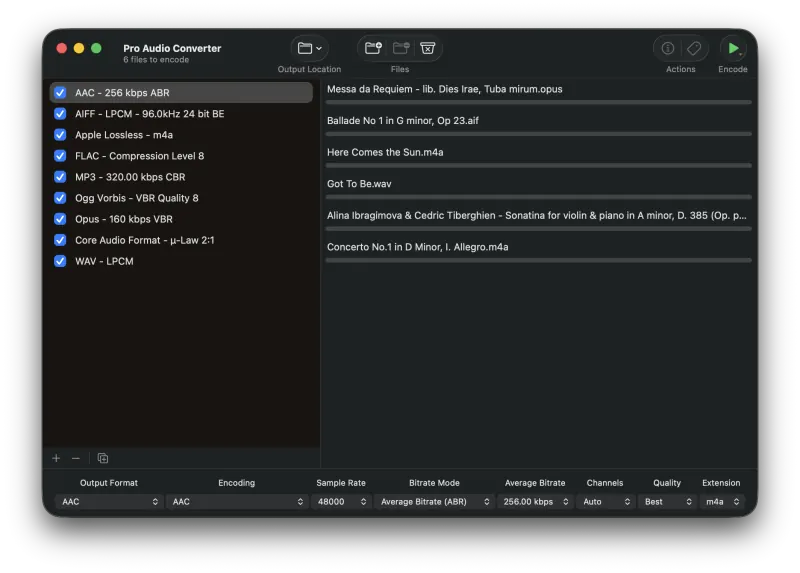
Toolbar Buttons
Encode
Click this button to start the encoding process. When encoding begins, this button changes to Cancel. Hold the mouse down on the button for a few seconds to reveal the Write Metadata button.
Cancel
When encoding files or adding files to the queue, the Encode button turns into Cancel. Clicking it stops the current operation. Files that are currently being encoded will stop and the partially encoded file will be deleted. Files that have not yet begun encoding remain in the queue.
Write Metadata
Click and hold the Encode button to reveal the Write Metadata button, or add it to the toolbar directly by option-clicking on the toolbar and choosing Customize Toolbar…. Pressing it writes the metadata back to the original file, letting Pro Audio Converter function as a basic tag editor. Click the Metadata button to reveal the metadata editor.
Metadata
Brings up the Metadata Editor.
File Info
Brings up the File Info Window.
Add Files
Brings up an Open Files dialog allowing you to add files or folders to the queue. See the section on adding and removing files for more details.
Remove Files
Removes the currently selected files from the queue. See adding and removing files for more details.
Add Format
Adds another output format to the list. You can then change and configure it in the Format Editor at the bottom of the window.
Remove Format
Removes the selected format from the formats list.
Duplicate Format
Duplicates the selected format.
/ Delete Original
Toggles whether the source file is moved to the Trash once its encode completes. means originals are kept; means they'll be deleted. Click the toolbar item (or change the same setting in General Settings) to flip between the two. Metadata-only writes never delete originals.
Output Location
Pulldown for the output directory. Click to pick from Same as source, the current fixed folder, or Choose Folder… (same options as the Output directory setting in General Settings).
File List
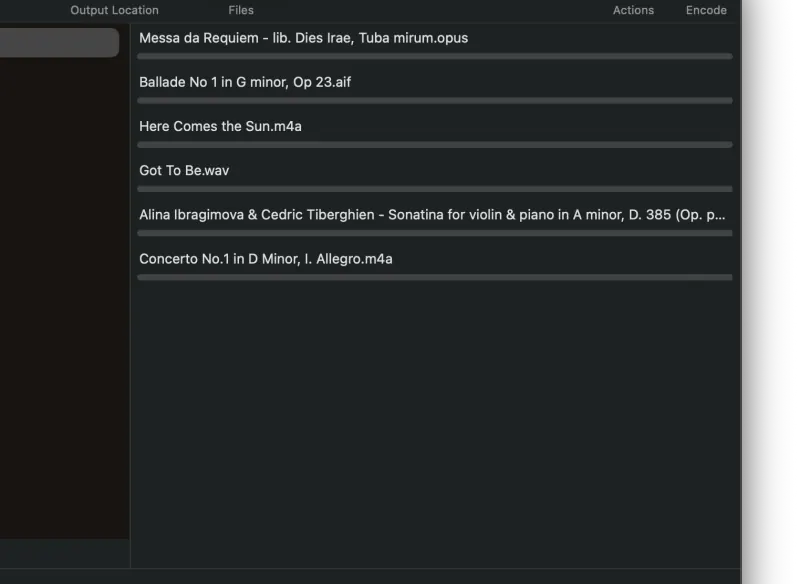
On the right, you will see a list of files to be encoded. Each file has a progress bar that shows the current status of the encoding process.
Output Formats List
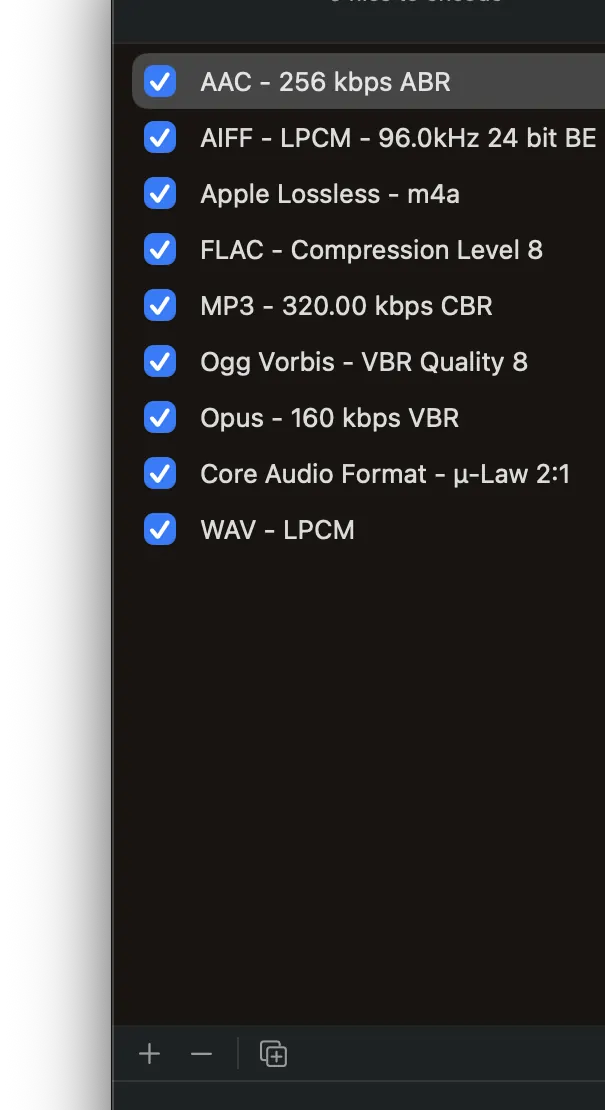
On the left is the Output Formats list. Pro Audio Converter can output to many different formats at once. Each file in the File List will be encoded to every format in the Output Formats list.
Output Format Editor

At the bottom of the window you will find the Output Format Editor. Each output format has its own unique set of pulldown menus for configuration. See the Audio Formats section for a detailed description of each format.
Still need help? Email [email protected] or send a message.