Settings
Every setting in Pro Audio Converter's Settings window, tab by tab in the order they appear.
General
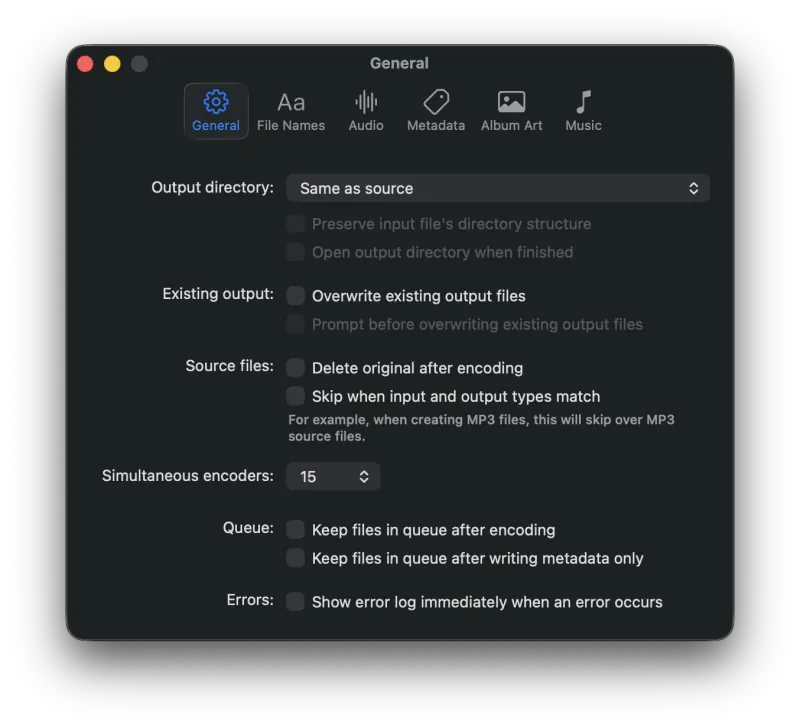
Output directory - Where encoded files will be written. Choose Same as source to write each output next to its input, or pick a fixed folder. If a custom naming scheme builds sub-folders, the base of that scheme starts here. See Output Directory & File Naming for the full list of format specifiers.
Preserve input file's directory structure - When the output directory is set to a fixed folder, this re-creates the source folder hierarchy beneath it. Drop a Music folder full of sub-folders and the same shape appears in the output. Disabled when Same as source is selected.
Open output directory when finished - Reveals the output folder in a Finder window once the entire queue finishes encoding. Disabled when Same as source is selected.
Existing output → Overwrite existing output files - When checked, output files that already exist are overwritten. When unchecked, Pro Audio Converter uniquifies the name by appending a number - for example, My Song.mp3 becomes My Song 01.mp3.
Existing output → Prompt before overwriting existing output files - Asks before each overwrite. You can choose to overwrite, keep both (uniquified), or skip the file, and apply that choice to the rest of the batch.
Source files → Delete original after encoding - Moves the source file to the Trash once its encode completes. Skipped for metadata-only updates.
Source files → Skip when input and output types match - When checked, Pro Audio Converter skips a source file whenever any output format you've configured would produce the same type. For example, when encoding to MP3, this will skip MP3 source files in the queue.
Simultaneous encoders - How many files Pro Audio Converter will encode in parallel. The maximum equals your CPU's logical core count. Lowering this reduces system load at the cost of total batch throughput.
Queue → Keep files in queue after encoding - Leaves completed files visible in the queue. By default they're cleared once their encode finishes.
Queue → Keep files in queue after writing metadata only - Same as above, but for metadata-only writes (Write Metadata toolbar action). See Using As A Tag Editor.
Errors → Show error log immediately when an error occurs - Pops the Error Log window as soon as the first error happens, rather than waiting for the whole batch to finish.
File Names
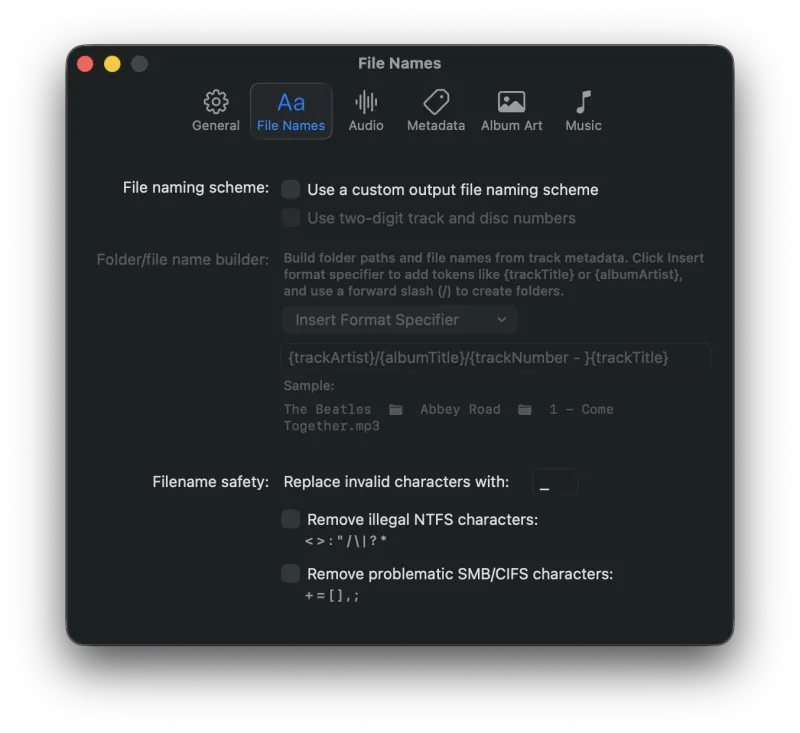
File naming scheme → Use a custom output file naming scheme - Replaces the default "same name as the source" output file with a name (and folder structure) you build from track metadata. With this off, Pro Audio Converter uses the source's basename. With it on, the builder below drives the output. See Output Directory & File Naming for the full reference.
File naming scheme → Use two-digit track and disc numbers - Forces track number, track total, disc number, and disc total format specifiers to render as two digits - 01 instead of 1. Useful for filename-based sort order.
Folder/file name builder - Type a format string using metadata tokens like
{trackArtist}, {albumTitle}, and {trackNumber - }. Use the Insert Format Specifier popup to add tokens, and forward slashes (/) to create sub-folders. The Sample line below shows what the current scheme would produce for a real track.
Filename safety → Replace invalid characters with - When a metadata token expands to a character that's illegal in a filename (e.g. a colon on most filesystems), substitute it with the character you specify here. Leave empty to drop the offending characters entirely.
Filename safety → Remove illegal NTFS characters - Strips
< > : " / \ | ? * from output filenames. Turn this on if you need filenames to round-trip cleanly to a Windows-formatted drive or share.
Filename safety → Remove problematic SMB/CIFS characters - Strips
+ = [ ] , ; as well. Some SMB shares get unhappy with these even though NTFS accepts them - turn this on if you've seen sync issues over a network share.
Audio
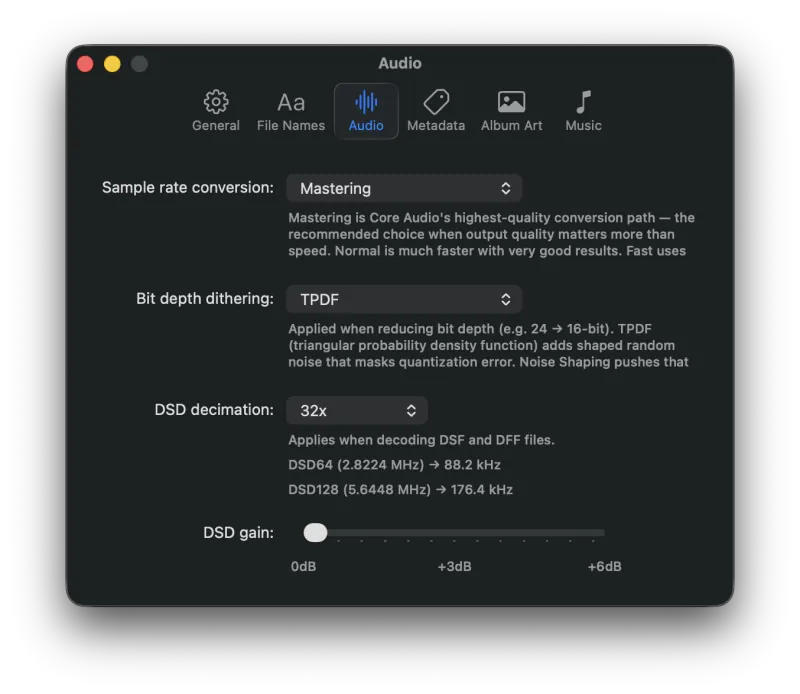
Sample rate conversion - Picks the quality of Core Audio's sample-rate converter, used whenever an output format needs a different rate than the source. Mastering is the slowest and highest-fidelity option (recommended for archival or release work). Normal is much faster and produces excellent results in everyday use. Fast trades a bit more quality for a measurable speed-up on long batches.
Bit depth dithering - Applied when reducing bit depth (e.g. 24-bit source → 16-bit output). TPDF (triangular probability density function) adds shaped random noise that masks quantization error, giving a smooth, audibly transparent result. Noise Shaping pushes the dithering noise into less-audible parts of the spectrum for a marginal subjective improvement. None skips dithering - only worth picking when the destination format itself dithers internally.
DSD decimation - How aggressively to downsample DSD (DSF / DFF) files into PCM during decoding. Higher decimation factors yield lower output sample rates with reduced aliasing artifacts; lower factors preserve more of the high-frequency content at the cost of larger files.
- 32× → DSD64 (2.8224 MHz) becomes 88.2 kHz, DSD128 (5.6448 MHz) becomes 176.4 kHz
- The display below the popup updates to show the resulting PCM sample rate for each DSD source rate.
DSD gain - DSD-to-PCM conversion can produce intersample peaks above the source's nominal full-scale, so Pro Audio Converter defaults to a small headroom margin. Pick +3 dB or +6 dB to apply a fixed boost - useful when a properly-mastered DSD file would otherwise come out quieter than expected. 0 dB keeps the natural level.
Metadata
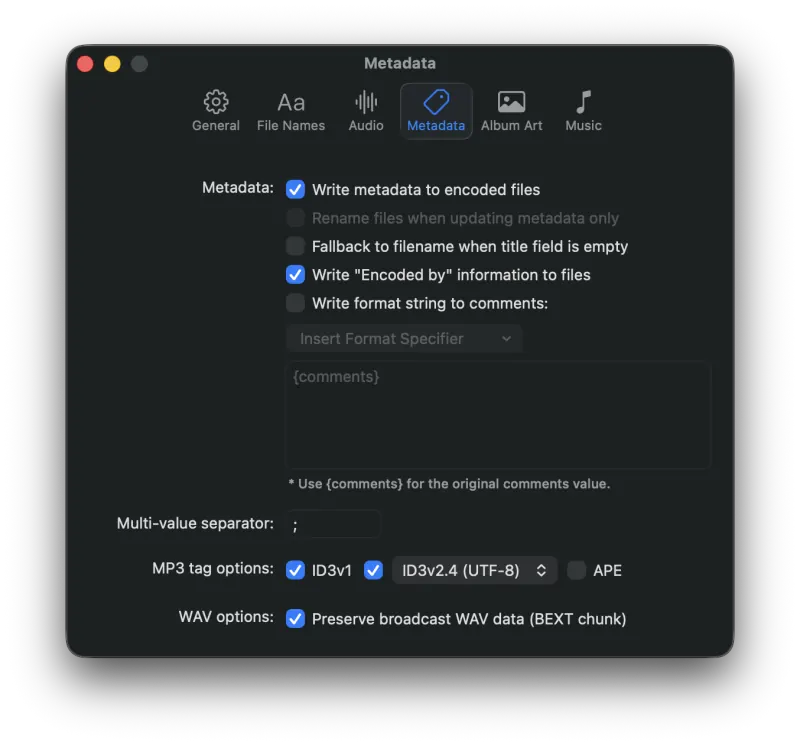
Metadata → Write metadata to encoded files - Master switch for tag writing. With this off, the encoder produces an output file with no tags - useful for reproducing bit-identical files that don't carry incidental metadata.
Metadata → Rename files when updating metadata only - When using Write Metadata (the press-and-hold action under the Encode button), this controls whether the source file is also renamed to match the custom file naming scheme. Without it on, only tags are rewritten in place.
Metadata → Fallback to filename when title field is empty - If a track has no Title tag, derive one from the source filename (sans extension) when writing tags. Stops untitled tracks from showing up as a blank line in players.
Metadata → Write "Encoded by" information to files - Adds an Encoded by: Pro Audio Converter X.Y string to each output's tags. Some users like the trail; turn it off if you'd rather not advertise.
Metadata → Write format string to comments - Replaces (or extends) the Comment tag with the format string in the textarea below. The string supports the same metadata tokens as the file-naming builder, plus the special
{comments} token which expands to the source file's existing comment value - useful when you want to preserve the original comment and append something to it.
Multi-value separator - Some metadata fields (Artist, Album Artist, Composer) can carry multiple values. The separator chosen here is used to join multiple values when displaying them in the editor and to split a typed-in string back into separate values when saving. Common choices:
; (semicolon-space, the default) or /. Match whatever your library or player expects so multi-artist tracks round-trip cleanly.
MP3 tag options - Which tag formats to write into MP3 outputs.
- ID3v1 - The original 128-byte tag at the end of an MP3 file. Universally supported; very limited fields. Leave on for maximum compatibility with old players.
- ID3v2 - Modern MP3 tagging. The popup picks the version: ID3v2.4 (UTF-8) is recommended; ID3v2.3 (UTF-16) is broader but produces larger tags.
- APE - APEv2 tag. Rare in MP3 files but supported by some niche players. Off by default.
WAV options → Preserve broadcast WAV data (BEXT chunk) - When the source is a Broadcast WAV file (BWF) and the output is also WAV, copy the BEXT metadata chunk through to the output. Used in broadcast and post-production workflows to preserve timestamps, originator info, and SMPTE references.
Album Art
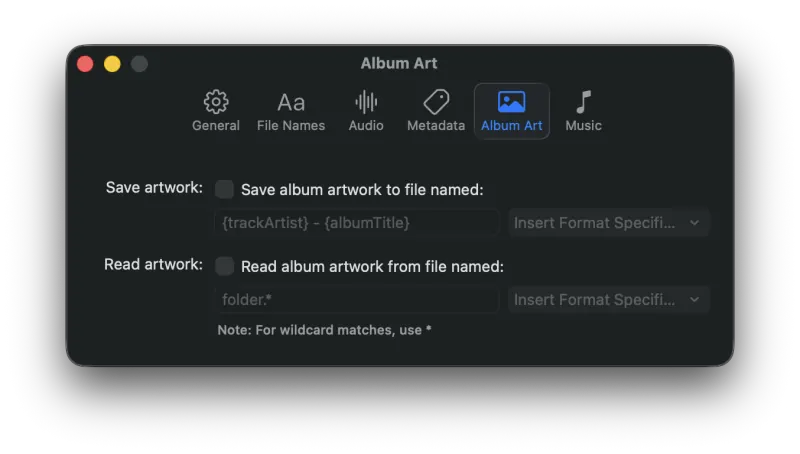
Save artwork → Save album artwork to file named - In addition to embedding the artwork in tags, save a separate image file alongside each output. The format string controls the file name (typical:
{trackArtist} - {albumTitle}). The image format is inferred from the embedded artwork's MIME type (JPEG or PNG).
Read artwork → Read album artwork from file named - When a source file has no embedded artwork, look for an image file next to it on disk. The format string is matched against the source's directory;
folder.* matches folder.jpg, folder.png, etc. The wildcard * matches one or more characters.
Music
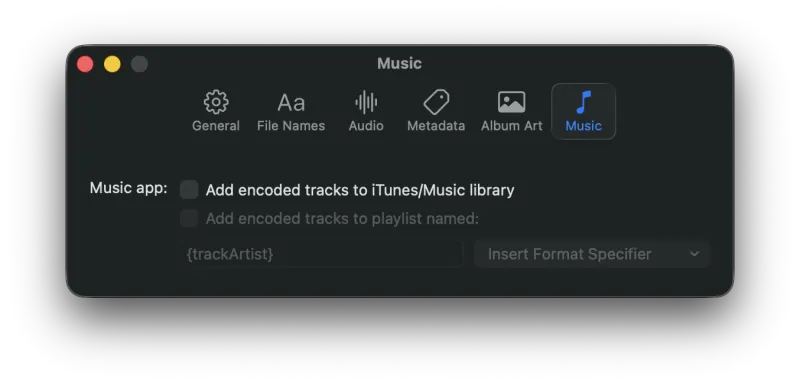
Music app → Add encoded tracks to Music library - After each successful encode, hand the output file to Apple's Music app so it appears in your library automatically. Music supports a fixed set of formats; outputs in unsupported formats won't be passed across.
Music app → Add encoded tracks to playlist named - Also add each track to a named playlist. The playlist name supports the same format specifiers as the file naming builder, so
{albumArtist} creates one playlist per artist, {albumArtist} - {albumTitle} creates one per album, and so on. New playlists are created on the fly if they don't exist.
Still need help? Email [email protected] or send a message.