
Importing Raw or Headerless Audio
When an audio file's format header is missing, MP3 Encoder asks for the parameters it needs and imports the file anyway.
Why this exists
Most audio files start with a header that tells programs how to decode the samples that follow: sample rate, bit depth, channel count, byte order, sign convention. When that header is missing or stripped, the audio data on disk is still intact but programs refuse to open the file because they have no way to interpret the bytes. MP3 Encoder would normally have to skip such a file. Instead, it puts up the Raw Audio Import sheet, asks you to supply the parameters by hand, and imports the file once you confirm.
The most common case in the wild is a Sound Designer II (.sd2) file whose resource fork has been stripped. Sound Designer II is an old Mac audio format that splits the file across two parts: the audio samples live in the data fork and the format description (sample rate, bit depth, channel count) lives in the resource fork. Resource forks are a Mac-only concept and they don't survive a trip through most modern channels: email attachments, cloud storage, ZIP files made on a non-Mac, or any non-HFS filesystem all silently strip them. The audio is intact; the format header is gone. When MP3 Encoder spots SD2 files in this state, the Raw Audio Import sheet is what comes up.
MP3 Encoder also recognizes generic raw PCM dumps by extension. Drop a .raw or .pcm file and the same sheet appears. SD2 captures use big-endian signed integers (the format's fixed convention) so the sheet hides the byte-order and sign controls; generic raw drops show the full set, since those files can use either endianness and either sign convention.
The Raw Audio Import sheet
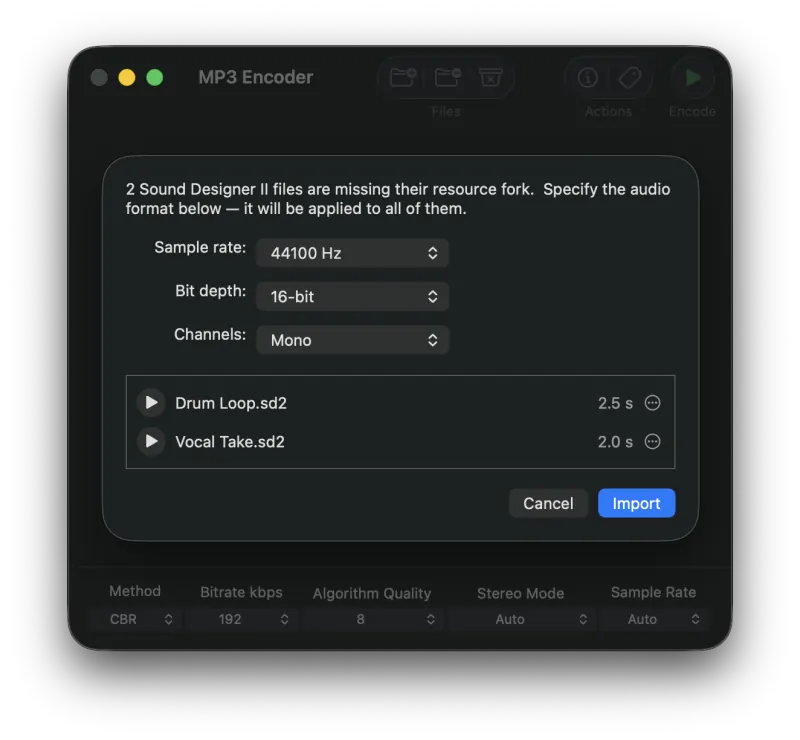
If MP3 Encoder finds several files in the same drop with the same apparent shape, they're grouped into a single section and one set of pulldowns applies to all of them. Files that the heuristic disagrees about get their own section.
The controls
Per-file overrides
Each row inside a section lists the file name and its duration. The gear button on the right lets you split that single file out into its own section if you need to apply different parameters to it than to the rest of the group. This is useful when one file in a batch has a different sample rate or channel count from the others.
Confirming the import
Click Import to accept the parameters and queue the files for encoding. MP3 Encoder wraps each accepted file on the fly into a temporary AIFF and feeds that AIFF into the normal encoding pipeline. The wrapped temp files are cleaned up automatically once encoding completes. Click Cancel to drop the raw files from the import; nothing is added to the queue.
Limitations
- 32-bit integer and floating-point PCM are not yet supported by the wrapper.
Still need help? Email [email protected] or send a message.