
MP3 Encoder's Main Window
Every toolbar button, the file list, and the encoder-settings pulldowns.
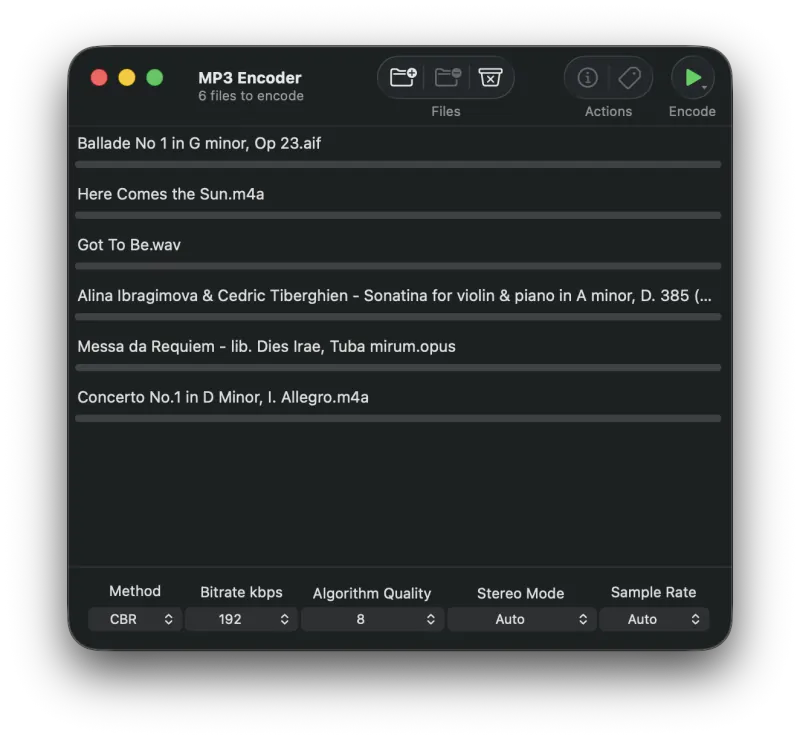
Toolbar Buttons
Encode
Click this button to start the encoding process. Once encoding begins, the button turns into a Cancel button. Click and hold the Encode button to reveal a popup menu that offers the option to write metadata back to MP3 source files.
Cancel
While encoding files or adding files to the queue, the Encode button turns into a Cancel button. Clicking it stops the encoding process or stops files from being added to the queue. Files currently being encoded stop and the partially encoded output is deleted. Files that have not yet finished encoding remain in the queue.
Write Metadata
Click and hold the Encode button to reveal the Write Metadata button, or add the button to the toolbar by option-clicking the toolbar and choosing Customize Toolbar…. Pressing this button writes the metadata back to the original file, allowing MP3 Encoder to function as a basic tag editor. Click the Metadata button to open the metadata editor.
Metadata
Brings up the Metadata Editor.
File Info
Brings up the File Info Window.
Add Files
Brings up an Open Files dialog, allowing you to add files or folders to the queue. See Adding/Removing Files for more details.
Remove Files
Removes the selected files from the queue. See Adding/Removing Files for more details.
/ Delete Original
Toggles whether the source file is moved to the Trash once its encode completes. means originals are kept; means they'll be deleted. Click the toolbar item (or change the same setting in General Settings) to flip between the two. Metadata-only writes never delete originals.
Output Location
Pulldown for the output directory. Click to pick from Same as source, the current fixed folder, or Choose Folder… (same options as the Output directory setting in General Settings).
File List
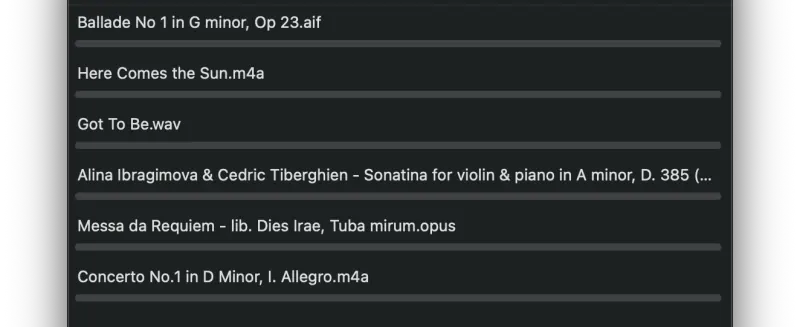
In the center of the window is a list of every file to be encoded. Each file has its own progress bar that shows encoding progress.
Encoder Settings
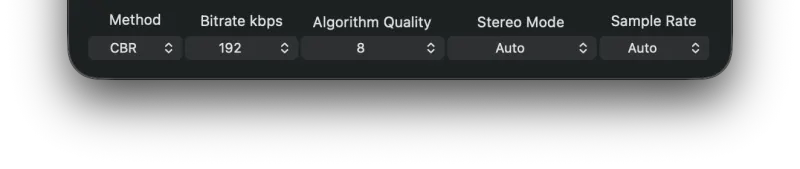
Bitrate Mode
Constant Bitrate (CBR) - The default and most basic mode. The bitrate is the same for the entire file, so every part uses the same number of bits regardless of the complexity of the audio. Complex passages end up at a lower quality than simple ones, but the final file size never changes and can be predicted precisely.
Variable Bitrate (VBR) - Choose a desired quality on a scale from 1 (lowest quality / highest distortion) to 10 (highest quality / lowest distortion). The encoder tries to maintain that quality across the whole file by picking the optimal number of bits for each section. The upside is that you specify a quality target; the downside is that the final file size is unpredictable.
Average Bitrate (ABR) - Pick a target bitrate and the encoder will maintain an average close to it, using higher bitrates for sections that need more bits. The result is higher quality than CBR at a similar average file size, so ABR is highly recommended over CBR.
Bitrate
When used with CBR, this is the constant bitrate to use; higher bitrates give higher quality audio but larger file sizes. When used with ABR, it is the average bitrate to target while allowing frames of different sizes.
VBR Quality
Specifies the VBR quality value. VBR quality ranges from 1 to 10, with 1 being the lowest and 10 the highest. On typical music, VBR Quality 5 results in files averaging around 132 kbps; VBR 8 averages around 200 kbps.
Quality
Specifies the quality of the encoder algorithm. Bitrate is the main influence on audio quality, but for any given bitrate there are several algorithm choices for determining the best scalefactors and Huffman encoding (noise shaping).
- 10 - Slowest and best possible version of all algorithms. Highest quality.
- 8 - Recommended. 9 and 10 are slow and may not produce significantly higher quality.
- 5 - Good speed, reasonable quality.
- 3 - Very fast, okay quality. (Psychoacoustics are still used for pre-echo and M/S, but no noise shaping is performed.)
- 1 - Disables almost all algorithms, including the psychoacoustic model. Poor quality.
Stereo Mode
Auto - For stereo sources, Stereo or Joint Stereo (mid/side stereo) is chosen on a frame-by-frame basis. In mid/side stereo, the mid (L+R) and side (L-R) channels are encoded with more bits allocated to the mid channel than the side, which effectively increases bandwidth for frames without much stereo separation and produces overall higher quality output. Mono sources are encoded as mono. This setting is recommended for the highest quality.
- Stereo - Left and Right are encoded as their own separate channels.
- Joint Stereo - Forces Mid/Side encoding for every frame.
- Mono - If the source file is stereo, the two channels are averaged into a mono signal. Mono source files are encoded as mono.
Sample Rate
MP3 Encoder automatically chooses the best sample rate for the job. If you have a specific requirement, you can pick any of the sample rates the MP3 specification allows for.
Still need help? Email [email protected] or send a message.